
WordPress Time Tracking: How to Finally Know Where Your Hours Go
Have you ever fixed something “quickly” and then looked up to find two hours had gone by?
If you build or maintain websites, you know the feeling. A small tweak turns into a plugin conflict. A quick update turns into a full regression check. By the end of the day, you’re not sure where the time went.
This is why WordPress time tracking matters. It isn’t only about billing. It helps you understand your work, price it fairly and explain it clearly to the people who pay for it.
In this post, I’ll explain why tracking your time is worth the effort, what usually goes wrong, and how to make it simple enough that you’ll actually keep doing it.
Why tracking your time matters
Most people think time tracking is for invoices. That’s part of it, but the benefits go further.
You get paid for the work you actually do. When you guess your hours at the end of the week, you nearly always guess low. Small tasks, emails and quick calls disappear from memory. A written record brings them back.
You can price future work honestly. If you know that a “simple” site update took five hours last month, you can quote the next one with confidence instead of hope.
You can show clients where their money went. A clear list of tasks and hours builds trust. It turns “why was this so expensive?” into a calm conversation.
You learn how you really spend your day. Many developers are surprised to see how much time goes to admin, support and meetings compared with building.
Why most people give up on time tracking
If time tracking is so useful, why do so many people stop? In my experience, there are three common reasons.
It takes too many steps. If you must open another app, log in and find the right project, you’ll forget. The tool has to be quicker than the excuse.
It lives in another place. Most tracking tools are separate services with their own accounts and monthly fees. Your work happens in WordPress, but your record lives somewhere else.
It feels like surveillance. Some tools take screenshots or monitor activity. That feels uncomfortable, and for client work it can raise real privacy questions.
A good tracking habit needs to be simple, close to where you work, and respectful of privacy.
Track your time inside the WordPress admin
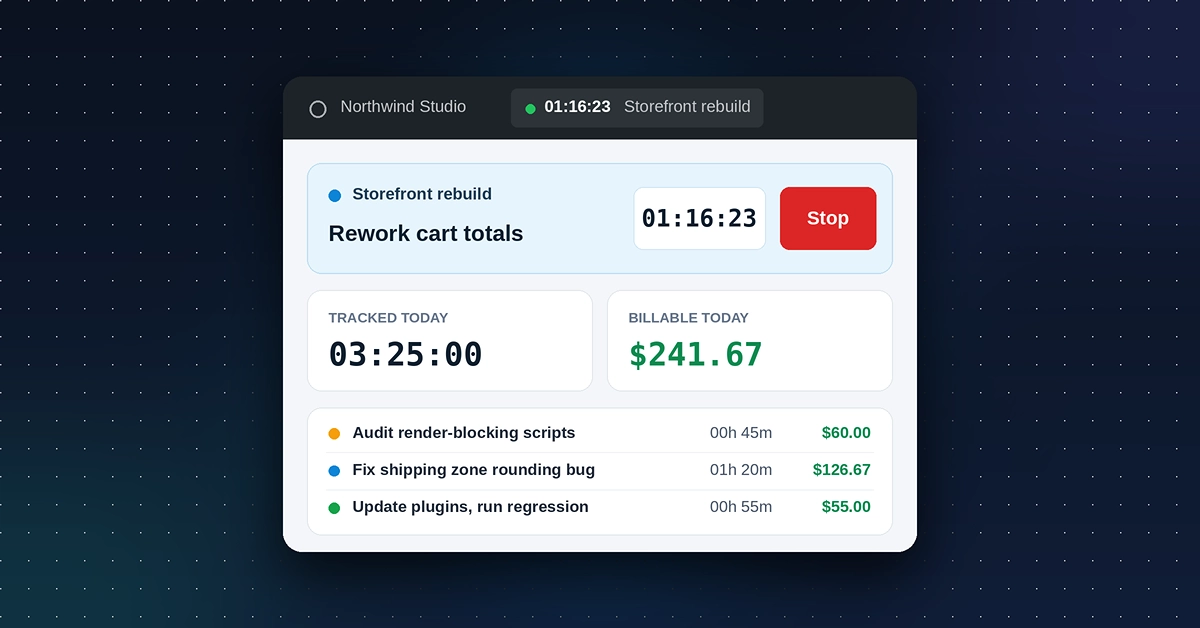
That’s the idea behind Devlapse Time Logging, a free plugin I built for people who build and maintain WordPress sites. It puts a timer right in the admin bar, so you can see at a glance whether the clock is running.
The basic flow takes seconds:
- Choose a project and describe the task.
- Press start.
- Work as normal. The admin bar shows the running project and time on every admin screen.
- Add a short note or commit reference if you want to remember what you did.
- Press stop, and the entry is saved with its duration, rate and billable status.
That’s the whole habit. Because the timer is already on the screen you’re working in, you’re far less likely to forget it.
Set up projects, clients and rates once
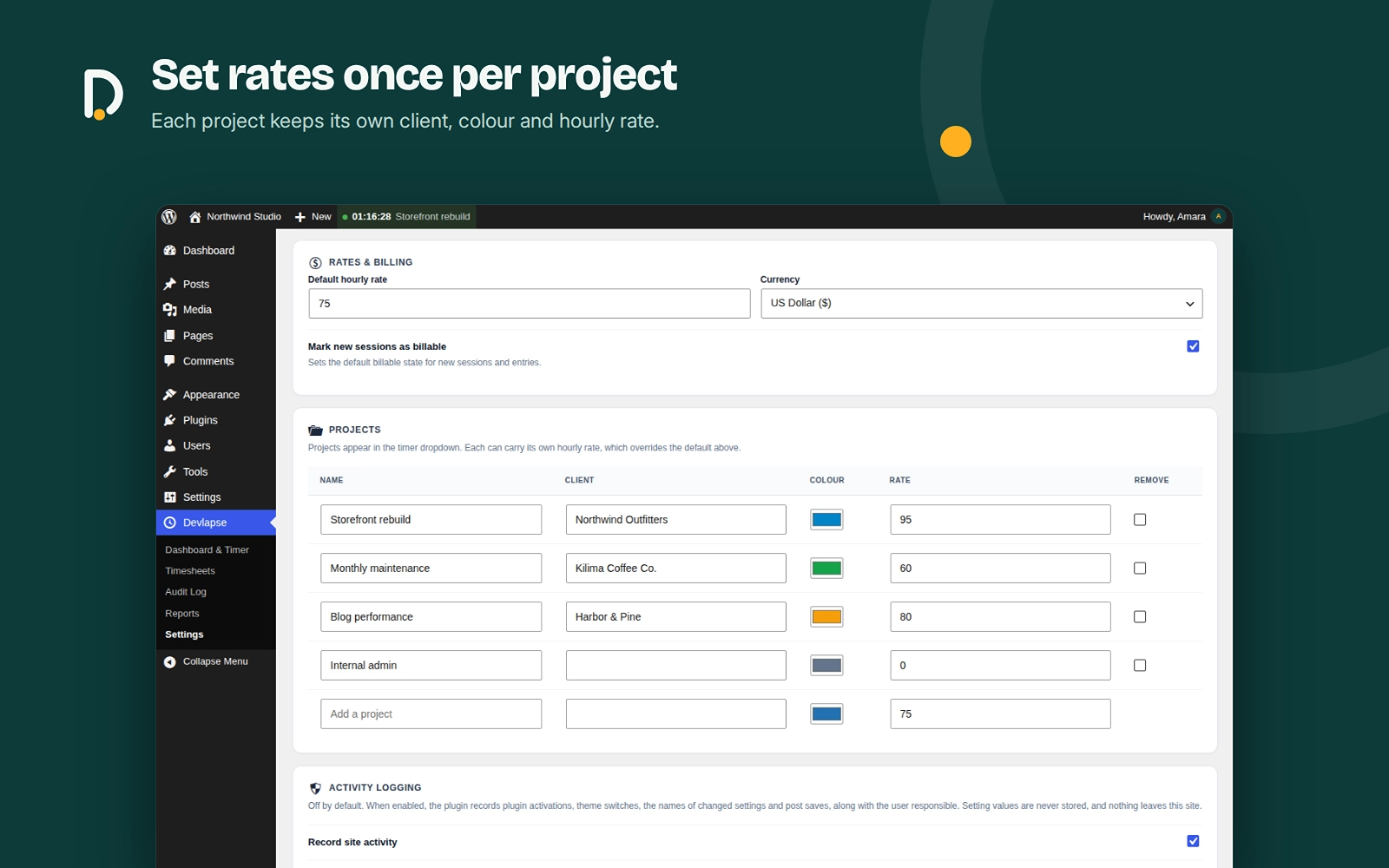
Good time tracking is easier when the boring setup is done once. In the plugin’s Settings screen, you can:
- Add your own projects, each with a client name and a colour.
- Give each project its own hourly rate, which overrides your default rate.
- Choose your currency from a list of common ones, or type in your own.
- Decide whether new sessions are billable by default.
The billable setting is more useful than it sounds. Internal work, like reviewing your support inbox, should not appear on a client’s summary by mistake. When you mark it as non-billable, the totals stay honest.
Forgot to start the timer? Add time manually
Everyone forgets sometimes. You take a call, sketch a plan on paper or spend an hour in a meeting away from your screen.
That’s what manual entries are for. On the Timesheets screen, you can add the hours, minutes and a short description for work done away from the keyboard. Your record stays complete without pretending the timer was running.
Timesheets, reports and billing summaries
Tracking is only half the job. The other half is using the data.
Timesheets list every logged session with the date, project, task, duration, rate and total. You can export them to CSV and open them in Excel, Google Sheets or your accounting tool.
Reports group your time by project, so you can see which clients take the most of your week.
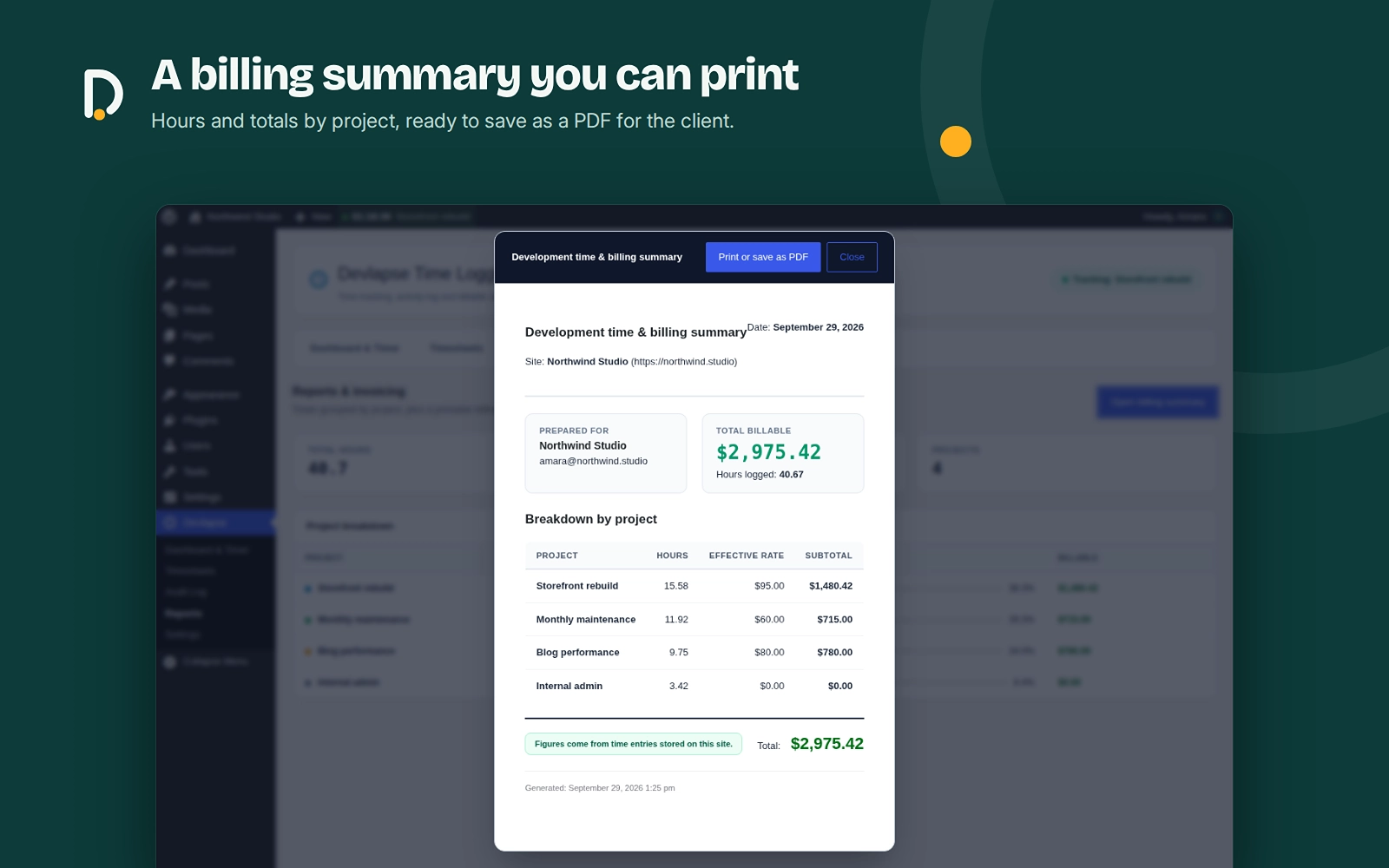
The billing summary shows the hours, effective rate and subtotal for each project, with a grand total. You can print it or save it as a PDF from your browser and send it to your client.
It isn’t a full invoicing system. Think of it as the clear, honest record you can use to build an invoice in whatever tool you already use.
A tip for clients: see what’s really happening
Time tracking isn’t only for developers. If you’re a business owner paying for website work, you may sometimes feel a project is taking longer than expected.
You can install the plugin on your own site and ask your developer to log their time there. As an administrator, you can see everyone’s entries, which means you can see the tasks and hours behind the work.
There’s also an optional activity log. When you switch it on in Settings, it records plugin activations, theme switches, the names of changed settings and post saves, along with the user responsible. It is off by default, and it never stores the values of your settings.
For this to work well, the developer needs to use the timer on that site. Agreeing on this at the start of a project keeps everything open and calm.
Your data stays on your site
Privacy matters for a tool like this. A time tracker holds personal information about how people spend their days.
For that reason, Devlapse Time Logging:
- Stores everything in your own WordPress database.
- Makes no external requests and includes no analytics or tracking.
- Needs no account or licence key.
- Turns off activity logging and email notifications until you switch them on.
- Works with WordPress’s personal data export and erase tools.
And to be clear, despite the name, it does not record your screen. It only keeps the entries you create.
Tips for building a time tracking habit
A tool only helps if you use it. Here are a few small habits that make a big difference:
- Start the timer before you start the work. Even a rough start is better than a perfect guess later.
- Write short, clear notes. “Fixed shipping rounding bug” will help you far more next month than “misc.”
- Review your week on Friday. Five minutes with your timesheet shows what took longer than planned.
- Keep internal work separate. Mark admin and learning time as non-billable so your client reports stay accurate.
- Use your data when you quote. Your past hours are your best guide for future prices.
Try it on your own site
Try the free demo
If you’d like to make WordPress time tracking part of your routine, you can try Devlapse Time Logging for free. It’s available on WordPress.org:
https://wordpress.org/plugins/devlapse-time-logging/
If there’s something you’d like it to do, such as custom reports, extra fields or a connection to your invoicing tool, please get in touch. I take on custom WordPress work too.
Final thoughts
Time is the one thing every freelancer, agency and site owner has a limited supply of. Knowing where it goes is the first step to using it well, pricing it fairly and building trust with the people you work for.
Start small. Track one project for one week. You may be surprised by what you find.