Automatic WordPress Updates: Should You Turn Them On?
November 24, 2026

In short
Yes, for most business sites automatic WordPress updates should be on for minor core releases and for simple, well-maintained plugins. Keep anything that touches payments, bookings, memberships or your page layout on manual updates, test those on a staging copy first, and always have a recent backup you can restore.
One of the questions I get most from business owners is whether they should switch on automatic WordPress updates and stop worrying about that little red number in the dashboard. My answer is "yes, but not for everything." Automatic updates are one of the best security habits you can have, yet a blanket "update everything automatically" setting is also one of the most common reasons I get an urgent message saying a checkout or contact form has stopped working.
In this post I'll explain what WordPress updates automatically on its own, what I happily leave on autopilot, what I always update by hand, and the routine I use on the sites I look after so updates stay safe without eating your week.
What WordPress already updates automatically
Out of the box, WordPress updates itself for minor core releases. These are the point releases (for example going from 6.x.1 to 6.x.2) that mostly contain security and bug fixes. They are small, well tested and rarely cause problems, which is why WordPress turns them on by default.
Everything else depends on your settings:
- Major core releases: the bigger version jumps that add new features. Newer installs often have these switched on, older sites usually don't. You can check under Dashboard, then Updates.
- Plugins: each plugin has an "Enable auto-updates" link on the Plugins screen. They are off by default.
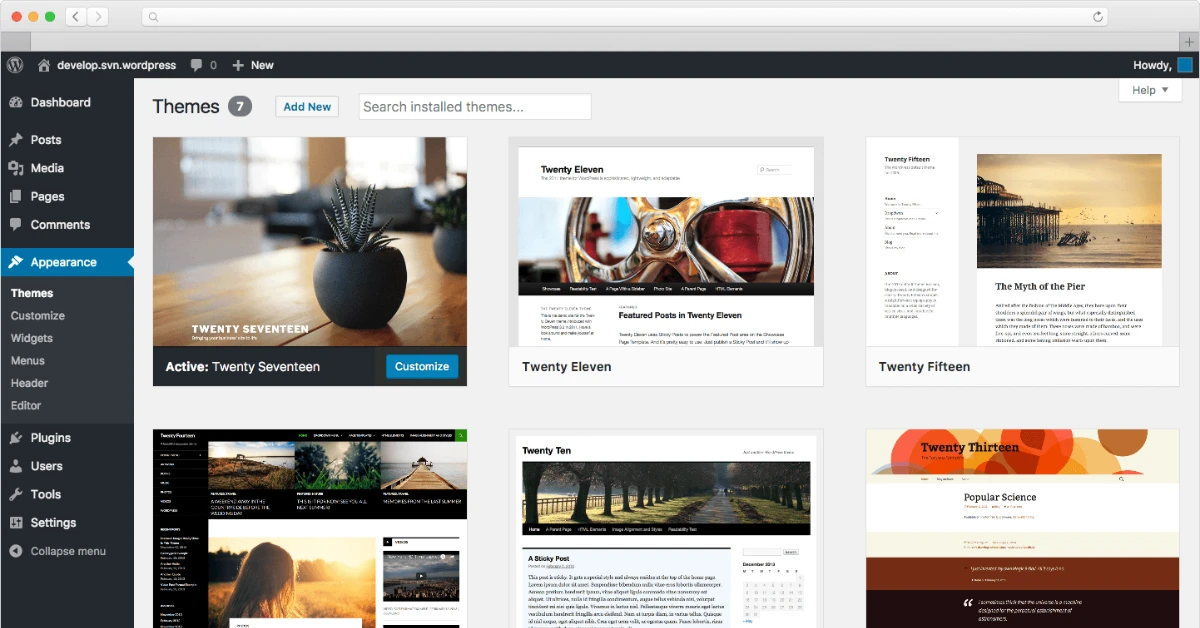
- Themes: the same option is available for each theme under Appearance, then Themes.
- Translations: language files update automatically and are almost never an issue.
Some hosts add their own layer on top of this. Managed WordPress hosts often run plugin updates for you, sometimes with a visual check before and after. That is useful, but it is worth knowing exactly what your host does so two systems aren't fighting each other. The official WordPress guide to configuring automatic background updates covers the technical options if you want to go deeper.
Why automatic WordPress updates matter for security
The majority of WordPress sites I clean up after a hack were not broken into through WordPress core. They were compromised through an outdated plugin or theme with a known, already-fixed vulnerability. Once a fix is published, the details of the hole are effectively public, and automated bots start scanning for sites that haven't patched it yet.
That is the real argument for automatic WordPress updates: the gap between a fix being released and you applying it is the window in which your site is exposed. If you only log in once a month, that window can be weeks long. An automatic update closes it in hours. I've written separately about what to do if your WordPress site has been hacked, and nearly every case in that guide starts with "something wasn't updated."
The risk: what can go wrong with automatic updates
Updates aren't risk free. Here is what I see break most often:
- Plugin conflicts: two plugins that worked fine together stop doing so after one of them changes how it loads scripts or handles data.
- Page builder changes: a page builder or its add-on pack updates and layouts shift, spacing changes or a widget disappears.
- Ecommerce and payments: a WooCommerce or payment gateway update needs a database update, changes templates, or expects a newer PHP version than your server has.
- Customised themes: if someone edited the theme files directly instead of using a child theme, a theme update overwrites those changes.
- PHP compatibility: newer plugin versions may drop support for old PHP versions, so the update installs but parts of the site throw errors.
Recent versions of WordPress can roll back an automatic plugin update that causes a fatal error, which is a helpful safety net. But it can't catch the quieter failures: a broken layout, a form that submits but never sends the email, or a checkout that loads but won't take payment. Those are the ones that cost money, because nobody notices them for days.
What I set to update automatically
On most business sites I look after, I'm comfortable leaving these on automatic updates:
- Minor core releases: always on. These are security fixes and should never wait.
- Security plugins: the whole point of these is to stay current with new threats.
- Small, single-purpose plugins: things like an SEO plugin, a redirect manager, a cookie notice or an image optimiser from a reputable, actively maintained developer. They rarely affect how pages look or how money flows.
- Translations: always on.
- Unused default themes: if you keep a default theme installed as a fallback, let it update (or better, delete themes you don't use).
What I always update by hand
These get updated manually, after a backup, and ideally after testing on a staging copy first:
- WooCommerce and its extensions: including payment gateways, shipping plugins and subscription add-ons. If you sell online, the checkout is the most valuable page you have.
- Booking, membership and course plugins: anything that handles customer accounts, appointments or access to paid content.
- Page builders and their add-ons: these control the layout of nearly every page, so a bad update is very visible.
- Your active theme: especially if it is a premium theme or has been customised.
- Major core releases on complex sites: on a simple brochure site I often leave them on; on a store or membership site I wait a week or two and test first.
- Custom or bespoke plugins: anything built specifically for your site should only change when its developer is ready.
If you're not sure which category a plugin falls into, ask yourself one question: "If this broke tonight, would I lose sales, leads or bookings?" If the answer is yes, keep it on manual.
My safe update routine for business websites
This is the process I follow for clients on my website maintenance plans. You can copy it whether you manage your own site or hand it over to someone.
1. Make sure a recent backup exists
Before any manual update, I confirm there is a fresh, complete backup of both the files and the database, stored somewhere other than the same server. A backup you have never tested isn't really a backup, so I explain how to check that in my guide on how to back up your website and actually restore it.
2. Test risky updates on staging
For the "manual" list above, I apply updates to a staging site first: a private copy of the live site. I click through the homepage, key service pages, forms and, for stores, a full test order. If anything looks off, the live site is untouched. If you've never used one, here is what a staging site is and how to use it.
3. Update in small batches
Updating twenty plugins at once makes it very hard to tell which one caused a problem. I update a few at a time, starting with the low-risk ones, and check the site between batches.
4. Check the things that make money
After updates, I check the pages and actions that matter to the business: contact forms actually deliver email, the checkout completes, booking calendars load, and logins work. A quick look at the homepage isn't enough.
5. Keep an eye on it for a day or two
I keep an uptime monitor running and check error logs after updates. Some problems only show up when a scheduled task runs overnight or a particular customer takes an unusual path through the site.
6. Clean up what you don't use
Every deactivated plugin and unused theme is still code sitting on your server, and it still needs updating. Removing what you don't need is the easiest way to reduce both update work and security risk.
How often should you update WordPress?
With automatic updates handling minor core releases and low-risk plugins, I recommend checking the remaining manual updates at least weekly for a store or busy business site, and at least every two weeks for a simple brochure site. Security releases are the exception: if a plugin you use announces a security fix, apply it as soon as you can, even if that means doing it outside your normal routine.
The worst approach is the one I see most often: no updates for six months, then everything at once. Large jumps across several versions are far more likely to break something than small, regular steps.
When it makes sense to hand updates over
If your site is a simple information site with a handful of plugins, you can manage updates yourself with the routine above. Once you're running a store, a booking system or a membership site, or you simply don't want to think about it, it's usually worth having someone handle updates, backups and testing as part of ongoing support. That way updates happen on schedule, risky ones get tested first, and there's someone to fix things if they ever do go wrong. You can see what that looks like on my WordPress technical support page.
Frequently asked questions
Is it safe to turn on automatic updates for all WordPress plugins?
For a very simple site with a few reputable plugins, it is usually fine. For sites with ecommerce, bookings, memberships or a page builder, I don't recommend it. Keep those plugins on manual updates and test them on staging first, while letting low-risk plugins update automatically.
Should I enable automatic updates for major WordPress core releases?
On a simple brochure site with few plugins, enabling them is reasonable. On complex sites, I prefer to wait a short time after a major release, let any early bugs get fixed in the first minor release, and test on staging before updating the live site. Minor core releases should always stay on automatic.
What should I do if an automatic update breaks my site?
First, don't panic and don't start reinstalling things at random. Note what changed and when, then either restore the backup taken just before the update or roll back the specific plugin to its previous version. If you can't get into the dashboard, your host can usually restore a backup or disable the plugin for you.
Do automatic updates replace website maintenance?
No. Automatic updates cover one part of maintenance. You still need tested backups, uptime and security monitoring, checks that forms and checkouts work, PHP and server updates, and someone to step in when something fails.
Will updating WordPress delete my content?
Normal core, plugin and theme updates don't delete your posts, pages or products. The common exception is direct edits made to a theme's files, which a theme update will overwrite. That's why customisations belong in a child theme or a custom plugin.